
Unreal Engine Settings for TimeWalk
Imported from TimeWalkOrg/Manhattan wiki
The current project requires Unreal Engine 5.3 running on a high-end Windows PC. Over time, we should be able to migrate to next-gen Mac, VR, AR, and smartphone platforms as they improve (and UE improves). For now, here are some settings that improve the realism and performance of TimeWalk:
Resolving Github “conflicts”
- When merging one branch into another (e.g. Dario into ted), you may see “Conflicts”, which means that an actor or object was edited in both branches and Github needs to know which one is “real”. You’ll need to “resolve conflicts” for that file and decide which branch to trust.
- All you see is the path to the file name of the “.uasset”, which is hard to interpret. Try opening the project in UE, then go to the menu “Tools/View Changes” and search for the uasset string. That might tell you what it is/was. I tried asking about this on Unreal forums here.
Pixel Streaming (Arcware)
- So that users with less powerful devices (tablets, laptops) can play with TimeWalk, we need to be able to “pixel stream” the game from a server.
- We have tested Arcware and have an account there
- You’ll need to install the pixelstreaming plugin (in Unreal) and tweak some settings, then build an executable, then upload that to Arcware
- Setup procedure starts here: https://platform.arcware.cloud/tutorials/plugin
Movie Render Queue Settings
Make the following changes in each level you want to render (i.e. repeat the process each time you load 1609, 1660, etc.):
- Enable Streaming (under World Settings/World Partition Setup). This will load only the landscape tiles that are in view at any time.
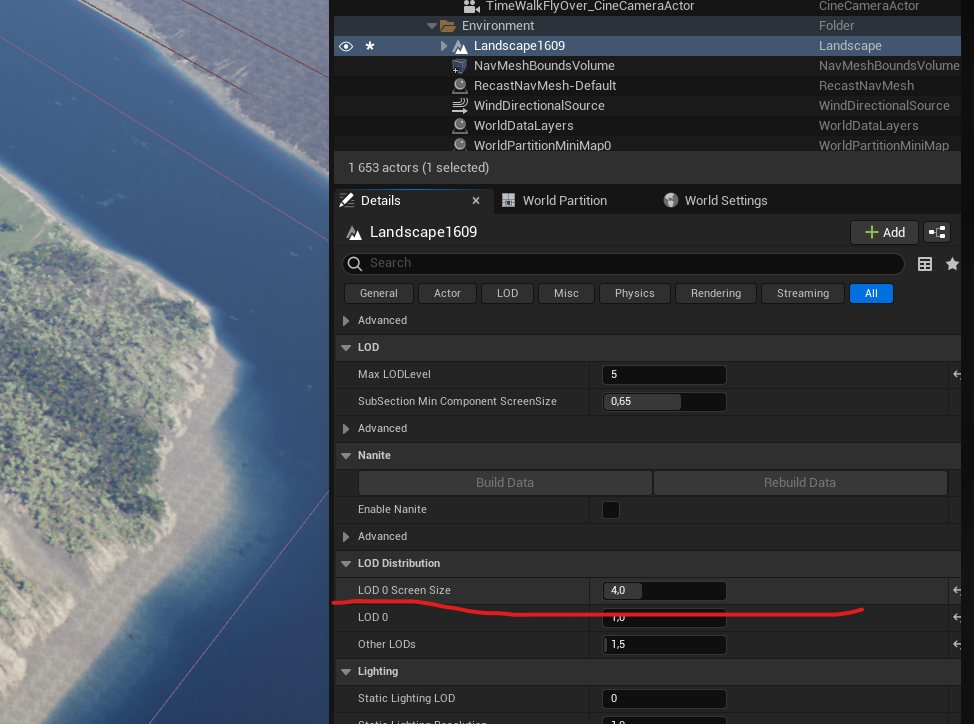
- Set LOD 0 Screen Size to 4.0 (default is 0.5) under Outliner/Environment/Landscape1609/Details. Screenshot below.
- Build HLODs to prepare for streaming (Build/Build HLOD). Do this after changing LOD 0 screen size to 4 (see above).
- After “Building HLODs”, you can set LOD 0 Screen Size back to 0.5
Optional:
- Alter the “Loading Range” (under World Settings/Runtime Settings). Default is 76800 (0.78km). Try larger numbers.
- Enable hardware ray tracing (Edit → Project Settings → Engine → Rendering) if your graphics card supports it
LOD screen size settings:
Enabling VR
Was able to run a VR session using a Meta Quest 3 tethered to a high-end PC (via “Quest Link”). See branch “vr-test”. Changes made:
- Use Quest 3 connected via USB cable to PC, load “Quest Link” (so that PC is driving graphics and running app)
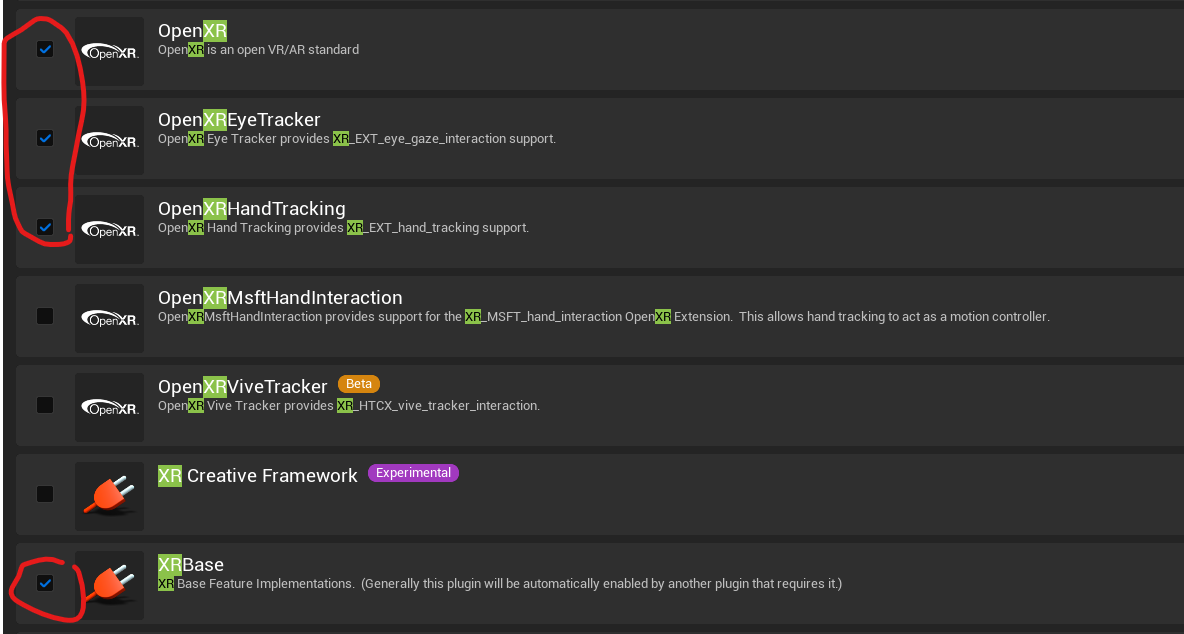
- In project: install XR plugins below:
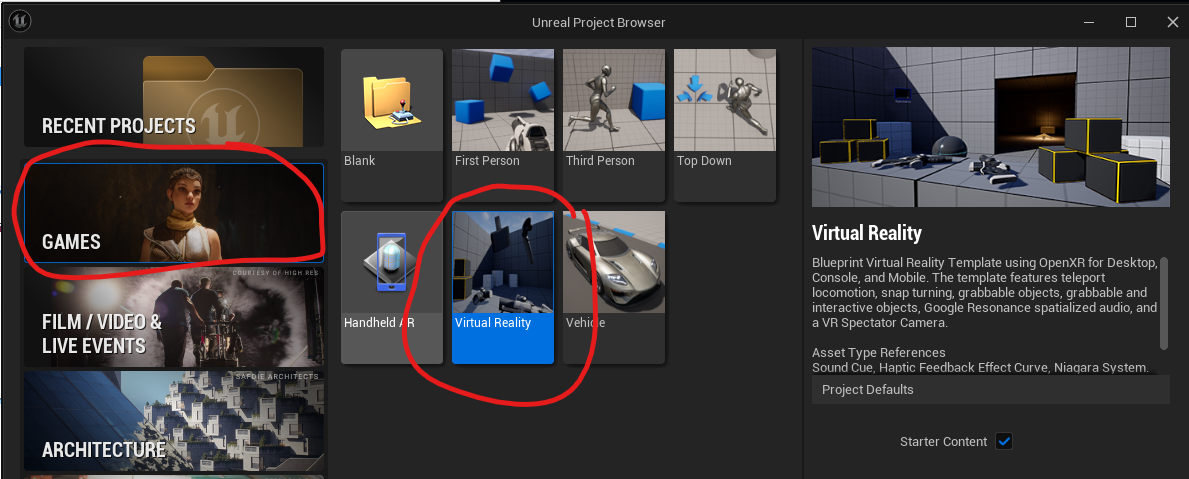
- Copy XR-related assets from a basic UE5.3 “Virtual Reality” game. Open a new blank VR project, then copy over assets
- Find these assets in Content Manager, right-click on each, choose “Asset Actions/Migrate…” and copy to Manhattan project Content folder
- VRGameMode (game mode blueprint)
- other?
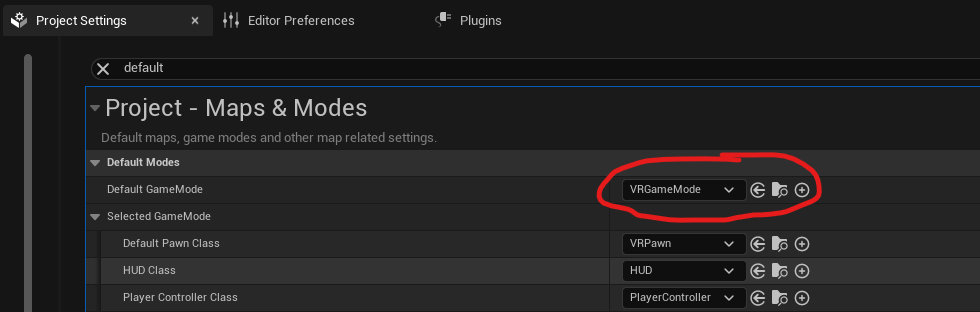
- In Manhattan project, open Edit/Project Settings, set Default Game Mode:
- Other changes (tbd from vr-test)…
Crashing on Launch of Project in UE?
If the project crashes on loading in UE (often with a message like “Assertion failed: UniformBufferStruct [File:D:\build++UE5\Sync\Engine\Source\Runtime\Engine\Classes\Materials\MaterialParameterCollection.h] [Line: 172]”), it may be that some intermediate, saved, or cached files (shaders, blueprints, meshes) were compiled in an EARLIER build and are causing problems with the latest project. Unreal tries not to rebuild files it doesn’t need to, but this can cause problems sometimes. Deleting these is okay because it simply rebuilds them when needed.
So try the following…
- Close UE
- Open the project folder and delete these folders:
- Saved
- Intermediate
- DerivedDataCache
- Then look in the Engine folder inside where UE5.4 (or whatever is latest install) is stored (on my system it’s “C:\Program Files\Epic Games\UE_5.4\Engine”)
- and delete the “DerivedDataCache” folder there (if there isn’t one, don’t worry).
- THEN look in the AppData folder for yet ANOTHER DerivedDataCache folder. On my system this was inside C:\Users\User\AppData\Local\UnrealEngine\Common\DerivedDataCache. Delete this entire DerivedDataCache folder.
Now try re-opening the TimeWalkManhattan.uproject again. Will take longer to load, but should not crash.
- But if it DOES crash on opening, try deleting those 3 files AGAIN and opening AGAIN and it should work. Go figure…